
SageTube Chrome Extension: Complete Usage Guide
· Updated · by SageTube Team · chrome-extension, product, guide
The SageTube Chrome extension puts a searchable AI layer directly on top of youtube.com: a chat sidebar you toggle with Ctrl+Shift+G that answers questions about the video you’re watching (with timestamped citations), a Summarize button, a Transcribe button, a one-keystroke shortcut (Ctrl+Shift+S) that adds the current video to a SageTube Expert, extra entries in the three-dot menu on video cards, and an Ask Channel button on channel pages. This guide covers every one of those features — how to install the extension, what each button does, what it costs, which keyboard shortcuts exist, and exactly which permissions it asks for and why.
Everything below is written against the extension source as it ships today — version 1.38.2, a Manifest V3 extension (rag_chrome_extension-master/manifest.json). Where a claim is about behavior, the file that implements it is named so you can hold us to it.
How do I install the extension and sign in?
Install SageTube from the Chrome Web Store (search for “SageTube”), then click the toolbar icon and sign in with Google. Sign-in uses Chrome’s built-in identity API — chrome.identity.getAuthToken — rather than a popup window with a password form, and the OAuth scopes requested are only your email address and basic profile (manifest.json, oauth2 block). There is no YouTube-account scope: the extension never gets access to your YouTube account, subscriptions, or watch history. It reads the public page you are looking at, nothing more.
Once you’re signed in, the session persists. A background service worker (background.js) uses Chrome’s alarms permission to refresh your token periodically, so you don’t have to re-authenticate every morning.
What does the extension actually add to YouTube pages?
Two content scripts run on www.youtube.com (manifest.json, content_scripts):
content.jsinjects the visible UI — the sidebar, the buttons under the player, the three-dot menu entries, and the channel-page button — together with its stylesheets (tokens.css,styles.css).caption-bridge.jsruns in the page’s own JavaScript context ("world": "MAIN") atdocument_start. It exists for one reason: reading YouTube’s caption data from inside the page, which is what lets SageTube fetch existing captions instead of re-transcribing audio — the difference between the $0.01/min and $0.05/min rates covered below.
Site access is limited to two hosts: www.youtube.com and sagetube.ai (manifest.json, host_permissions). The extension is inert everywhere else on the web.
How do I open the chat sidebar?
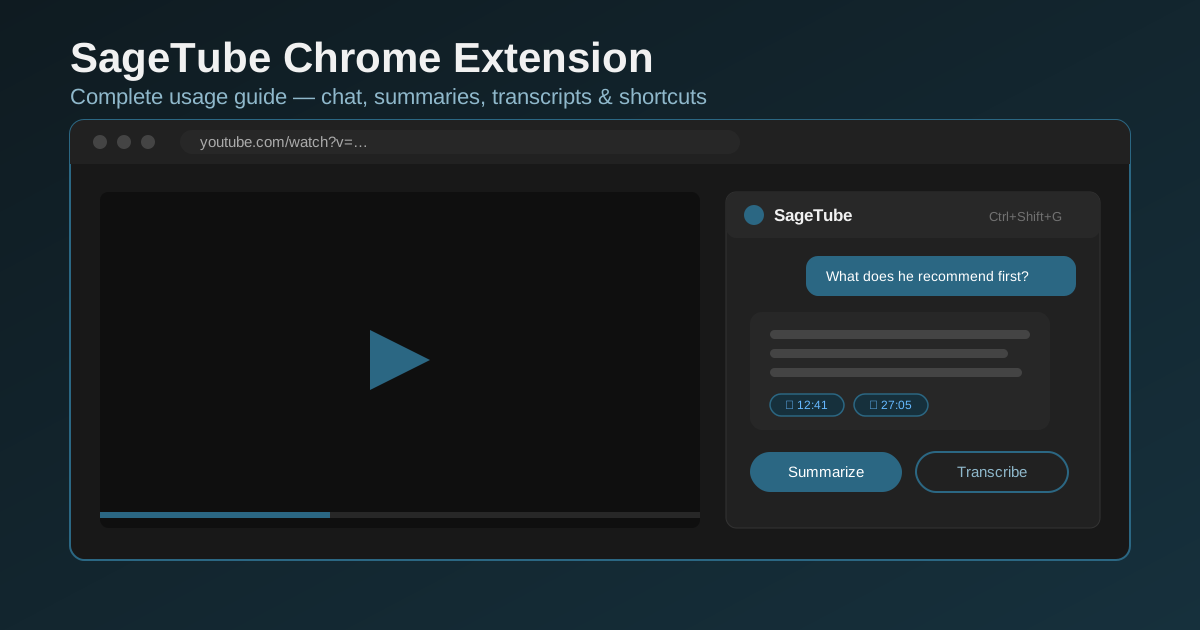
Press Ctrl+Shift+G (Cmd+Shift+G on a Mac) on any YouTube watch page, or click the slim handle docked to the edge of the window (styles.css:2676, .sagetube-sidebar-handle). The sidebar hub (styles.css:1571) opens next to the video without covering it.
Ask a question about the video in plain English. Answers come back with citations: each claim links to the video and timestamp that supports it, and clicking a timestamp seeks the player to that moment. This is the same grounding model used across SageTube — every answer traces back to a specific clip, which is what makes it verifiable rather than something you have to take on faith. The reasoning behind that design is covered in depth in Citations, Timestamps, and Trust, and the case for passage-level citations over page-level ones in How RAG citations differ from web-search citations.
If the video you’re chatting about hasn’t been indexed yet, the sidebar shows an Import & Transcribe prompt (styles.css:3963, the “Transcript Gate”) — one click imports the transcript and chat becomes available for that video.
How do I summarize a video?
Open the sidebar on a watch page and click Summarize (styles.css:1209, .sagetube-summarize-btn; the button shows a processing state while the summary is generated). You get a structured summary — key points, takeaways, and timestamped chapters — as the landing-page FAQ describes (config/faq.php, “Can SageTube summarize a YouTube video?”).
You don’t have to open the video first: the same action is available from the three-dot menu on any video card, covered below. That’s the fastest way to triage a search-results page — summarize the three candidates, open the one that actually covers what you need.
How do I get a video’s transcript?
Click Transcribe in the sidebar. What happens next depends on the video:
- The video has captions. SageTube fetches them via the caption bridge described above. Cost: $0.01 per minute of video (
config/subscription.php,rates.caption_per_minute). - The video has no captions. SageTube extracts the audio and runs full speech-to-text. Cost: $0.05 per minute (
config/subscription.php,rates.transcription_per_minute).
The caption path is both cheaper and far more common. In our production index right now, roughly 19,960 transcripts have been ingested, and only 1,109 required the audio-extraction fallback — about 5.6%. Most YouTube videos in the topics people index (education, tech, business) already carry usable captions.
How do I add a video to an Expert?
An Expert is SageTube’s unit of knowledge: a private, searchable index built from the channels and videos you add to it (you can read more on the SageTube homepage). The extension gives you a one-keystroke way to grow one:
- On any watch page, press Ctrl+Shift+S (Cmd+Shift+S on Mac) — the
add-videocommand inmanifest.json— or use the sidebar’s add button. - Pick the target Expert in the selector.
- The video is queued: transcript fetched, chunked, embedded, and added to the Expert’s vector index. A processing indicator tracks it, and the video then appears in that Expert on your dashboard.
From then on, questions you ask that Expert — in the extension, on the web app, or on a shared public page — can draw on that video, with citations pointing back into it.
What’s in the three-dot menu on video cards?
SageTube adds its own entries to the three-dot menu on video cards across YouTube’s home page, search results, and channel pages (styles.css:1369, .sagetube-context-menu-item). That means Summarize and Transcribe work on videos you haven’t opened: hover a card in your search results, open its three-dot menu, and act on it directly.
This is the highest-time-saved feature in the extension for research workflows. A search-results page with ten plausible videos used to mean ten open tabs; now it’s ten summaries queued from one page, and you open only the video that earns it.
What does the Ask Channel button do?
On channel pages and next to channel names in card metadata, SageTube injects an Ask Channel button (styles.css:4105–4109, .sagetube-channel-ask-btn). It’s the entry point for cross-video questions: instead of asking about one video, you ask across everything indexed from that channel — “what does this channel recommend for X?” — and the answer cites the specific videos and timestamps it drew from.
Cross-channel search at scale is the core of the platform (the landing FAQ calls whole-channel Q&A “the core use case”, config/faq.php), and there’s real volume behind it: as of July 2026, SageTube’s production index holds 45,549 videos across 161 channels — a little over 12,000 hours of video. That’s the corpus figure from our own database, not an estimate.
Does the extension respect dark mode?
Yes, automatically — no setting to flip. YouTube toggles a dark attribute on its root HTML element when you switch themes, and the extension’s stylesheet keys off exactly that attribute: html[dark] selectors restyle every SageTube surface (styles.css:84–137, with dark variants throughout — the context menu at styles.css:1413, the channel button at styles.css:4156, and so on).
The color system is deliberately YouTube-native. tokens.css defines a palette that mirrors YouTube’s own light- and dark-mode surfaces (tokens.css:85–104 — the same #0f0f0f/#f1f1f1 text pairing and #272727/#181818 surfaces YouTube uses), with SageTube’s presence marked by a single muted teal accent, #2b6783 (tokens.css:26, applied as --sagetube-accent in styles.css:43). The goal is that the sidebar reads as part of YouTube, not a banner ad sitting on top of it.
What does using the extension cost?
The extension is free to install; usage draws on your SageTube wallet. Every rate below is the live value in config/subscription.php:
| Action | Cost |
|---|---|
| Transcript from existing captions | $0.01 / minute of video |
| Transcription when no captions exist | $0.05 / minute of video |
| Chat question (standard model) | $0.02 / question |
| Chat question (advanced model) | $0.10 / question |
Every new account starts on the free Starter tier with a $5.00 wallet balance (config/subscription.php, free.starting_balance), 1 Expert, and 3 sources — enough to index a few hours of video and run a couple hundred standard questions before paying anything. Paid tiers ($9/$29/$99 per month) come with a matching monthly wallet allowance, and wallet balance never expires (config/faq.php, “How much does SageTube cost?”).
What are the keyboard shortcuts?
Three commands ship with default bindings (manifest.json, commands):
| Shortcut (Windows/Linux) | macOS | Action |
|---|---|---|
| Ctrl+Shift+G | Cmd+Shift+G | Toggle the SageTube sidebar |
| Ctrl+Shift+S | Cmd+Shift+S | Add the current video to an Expert |
| Ctrl+Shift+F | Cmd+Shift+F | Open the SageTube popup |
Chrome lets you remap any of these at chrome://extensions/shortcuts.
What does a real session with the extension look like?
A concrete example ties the pieces together. Say you’re researching how to structure a home lab network and YouTube search gives you a page of 15–40-minute videos.
- Triage without opening anything. On the results page, open the three-dot menu on the three most promising cards and hit Summarize on each. Thirty seconds later you have three structured summaries with timestamped chapters, and it’s obvious which video actually covers VLAN segmentation instead of mentioning it once.
- Go deep on the winner. Open that video, press Ctrl+Shift+G, and ask the sidebar directly: “what subnet layout does he recommend and why?” The answer cites the exact moments in the video; click a timestamp and the player seeks there so you can hear it in the creator’s own words.
- Keep it. Press Ctrl+Shift+S and add the video to your “Homelab” Expert. Next month, when you’ve forgotten which of forty videos explained DNS split-horizon, you ask the Expert instead of re-watching anything.
- Widen the question. If the whole channel is good, use Ask Channel to query across everything indexed from it — “has he ever compared OPNsense and pfSense?” — and get an answer drawing on multiple videos at once, each claim cited.
The through-line: you stop treating videos as things to watch end-to-end and start treating them as sources to query. The extension’s job is making that switch cost one keystroke instead of a copy-paste trip to another app.
What permissions does the extension request, and why?
Exactly three, and the manifest documents the justification for each one inline (manifest.json, _permissions_justification):
storage— keeps your authentication token locally so you stay signed in between sessions.identity— powers Google sign-in through Chrome’s own OAuth flow (chrome.identity.getAuthToken), so the extension never handles your password.alarms— schedules background token refreshes so your session doesn’t silently expire.
There is no tabs, no history, no <all_urls>. Host access is www.youtube.com and sagetube.ai only, and the extension’s own pages run under a strict content-security policy (script-src 'self', manifest.json). If you audit extensions before installing them — a good habit — this one is a short read.
How does the extension fit into the rest of SageTube?
The extension is the capture-and-ask surface; the web app is where the knowledge accumulates. Videos you add with Ctrl+Shift+S build Experts you can query from anywhere, share publicly, or browse alongside others on the Explore page. The grounding rules are identical everywhere: answers cite video + timestamp, and a claim without a supporting clip doesn’t ship.
If you’re evaluating whether that citation model actually matters, start with the pillar post: Citations, Timestamps, and Trust: How SageTube Answers Are Grounded.
Accuracy note: every product claim in this guide was checked against the shipping source — the extension manifest and stylesheets (rag_chrome_extension-master/manifest.json, styles.css, tokens.css), the pricing configuration (config/subscription.php), and the landing FAQ (config/faq.php) — and the index statistics (45,549 videos, 161 channels, ~12,000 hours, 5.6% audio-fallback rate) are production database figures as of July 2, 2026. Version numbers and rates reflect extension v1.38.2. If anything here drifts from what you see in the product, that’s a bug in the post — tell us.
Frequently asked questions
- What does the SageTube Chrome extension do?
- It adds an AI layer directly onto youtube.com: a chat sidebar (Ctrl+Shift+G) that answers questions about the video with timestamped citations, a Summarize button, a Transcribe button, a one-keystroke way to add the current video to a SageTube Expert (Ctrl+Shift+S), entries in the three-dot menu on video cards, and an Ask Channel button on channel pages. Nothing leaves YouTube — the whole workflow happens in a panel next to the player.
- Is the SageTube Chrome extension free?
- The extension itself is free to install, and every new account starts with a $5 wallet balance. Actions that consume compute draw from that wallet: fetching a captioned video's transcript is $0.01 per minute of video, transcribing a video without captions is $0.05 per minute, a standard chat question is $0.02, and an advanced-model question is $0.10. The free Starter tier includes 1 Expert and 3 sources.
- What permissions does the extension request, and why?
- Exactly three: storage (to keep your login token so you stay signed in), identity (for Google sign-in via Chrome's own OAuth flow), and alarms (to refresh your session token in the background). Site access is limited to youtube.com and sagetube.ai. The extension cannot read other tabs or browse your history, and the Google OAuth scopes cover only your email address and basic profile.
- Does the extension follow YouTube's dark mode?
- Yes, automatically. The extension's stylesheet keys off the same html[dark] attribute YouTube itself toggles, and its color tokens mirror YouTube's own dark-theme surfaces, so the sidebar, menus, and buttons switch themes the moment YouTube does — there is no separate setting.
- What are the keyboard shortcuts?
- Three defaults: Ctrl+Shift+G toggles the chat sidebar, Ctrl+Shift+S adds the current video to a SageTube Expert, and Ctrl+Shift+F opens the extension popup. On macOS, replace Ctrl with Cmd. All three can be remapped at chrome://extensions/shortcuts.