
Installing the SageTube Chrome Extension
· Updated · by SageTube Team · chrome-extension, product, guide
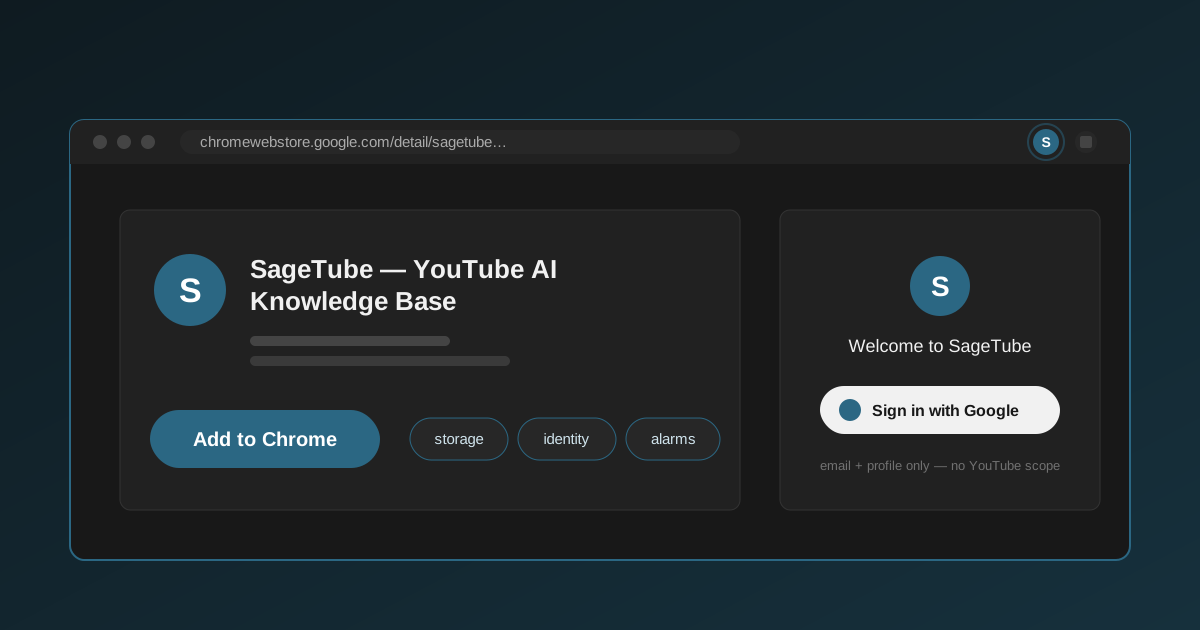
To install the SageTube Chrome extension, open its Chrome Web Store page, click Add to Chrome, confirm with Add extension, then click the SageTube icon in your toolbar and sign in with Google. That’s the whole process — it takes about a minute, installing is free, and a new account starts with a $5 wallet balance to spend on transcripts, summaries, and chat. The rest of this post covers what happens at each of those steps, which browsers work, and what each permission in the install prompt actually does.
How do I install it?
- Open the SageTube listing on the Chrome Web Store.
- Click Add to Chrome, then Add extension in the confirmation dialog. Chrome shows the extension’s site access in this dialog — for SageTube that is
www.youtube.comandsagetube.ai, nothing else (rag_chrome_extension-master/manifest.json,host_permissions). - The SageTube icon appears in your toolbar. If it doesn’t, click the puzzle-piece icon and pin it — you’ll want it reachable for sign-in.
That’s it for installation. Nothing works yet, though, because every action is tied to a SageTube account — which is what sign-in is for.
How do I sign in?
Click the SageTube toolbar icon and choose Sign in with Google. The popup hands the request to the extension’s background service worker (src/popup/index.ts:201), which calls Chrome’s own identity API — chrome.identity.getAuthToken (src/background/index.ts:178). In practice this means you pick an account from Chrome’s native account chooser; there is no password form rendered by the extension, so there is nothing for a fake page to imitate.
Two details worth knowing about this flow:
- The scopes are minimal. The extension requests only your email address and basic profile (
manifest.json,oauth2.scopes). There is no YouTube scope — SageTube never gets access to your subscriptions, playlists, or watch history. - The session persists on its own. The background worker uses Chrome’s
alarmspermission to schedule periodic token refreshes (manifest.json,_permissions_justification.alarms), so you sign in once, not every morning.
Which browsers can run it?
Google Chrome is the supported browser. Being precise about this matters more than a longer compatibility list:
- Chrome — fully supported. The extension is a Manifest V3 extension built against Chrome’s APIs (
manifest.json,manifest_version: 3). - Edge, Brave, and other Chromium browsers — these can install extensions from the Chrome Web Store, and the UI will load. But sign-in depends on
chrome.identity.getAuthToken(src/background/index.ts:178), which is tied to Chrome’s built-in Google account layer, and the extension ships no fallback sign-in path. If you’re outside Chrome proper, expect sign-in to be the step that fails. - Firefox — not supported. There is no Firefox build of the extension.
If you use SageTube in a browser we don’t support, the web dashboard at sagetube.ai works everywhere — the extension is a convenience layer on top of the same product, not the only door in.
What permissions does it ask for, and why?
The install prompt lists three permissions, and the manifest documents the reason for each one in a _permissions_justification block (manifest.json) — the same explanations we file with the Chrome Web Store review team:
storage— keeps your authentication token on your machine so your login survives browser restarts.identity— enables the Google sign-in flow described above, via Chrome’s own OAuth machinery.alarms— schedules the background token-refresh checks that keep you signed in without re-authenticating.
Site access is limited to two hosts — www.youtube.com and sagetube.ai (manifest.json, host_permissions). The extension injects its interface only on YouTube pages (manifest.json, content_scripts) and talks only to SageTube’s own API. It cannot read your other tabs, and its content security policy allows no third-party scripts (manifest.json, content_security_policy).
What can I do the moment it’s installed?
Open any YouTube video and you have three keyboard shortcuts, all declared in the manifest’s commands block (Cmd instead of Ctrl on a Mac, all remappable at chrome://extensions/shortcuts):
- Ctrl+Shift+G toggles the chat sidebar — ask a question about the video and get an answer with timestamped citations.
- Ctrl+Shift+S adds the current video to one of your SageTube Experts.
- Ctrl+Shift+F opens the extension popup.
Costs come out of your wallet at published rates (config/subscription.php, rates): fetching a captioned video’s transcript is $0.01 per minute of video, and transcribing a video with no captions — which requires extracting and processing the audio — is $0.05 per minute. In practice the cheap path is the common one: as of July 2026, of the 19,943 videos transcribed on SageTube, only 1,142 — about 6% — needed the audio-extraction route. The other ~94% had captions we could fetch directly.
The free Starter tier includes 1 Expert and 3 sources alongside the $5 starting balance (config/subscription.php, free), which is enough to index a few videos end-to-end and decide whether the workflow earns a spot in your toolbar.
For what to do next — summarizing from the three-dot menu, transcripts, dark mode, the channel-page button, and every other feature — the complete extension guide walks through all of it.
Frequently asked questions
- Is the SageTube Chrome extension free to install?
- Yes. Installing is free, and every new account starts on the free Starter tier with a $5 wallet balance, 1 Expert, and 3 sources. Actions that consume compute — transcripts, summaries, chat questions — draw from that wallet, so you can try everything before paying anything.
- Which browsers does the SageTube extension support?
- Google Chrome. Other Chromium browsers such as Edge and Brave can technically install extensions from the Chrome Web Store, but SageTube's sign-in uses chrome.identity.getAuthToken, an API tied to Chrome's built-in Google account integration, so sign-in outside Chrome is not guaranteed. There is no Firefox version.
- What permissions does the extension request, and why?
- Exactly three: storage (keeps your login token locally so you stay signed in), identity (Google sign-in through Chrome's own OAuth flow), and alarms (schedules background token refresh so you don't have to re-authenticate every day). Site access is limited to www.youtube.com and sagetube.ai — the extension is inert everywhere else.
- Does the extension get access to my YouTube account?
- No. The Google OAuth scopes it requests cover only your email address and basic profile. There is no YouTube-account scope, so it cannot see your subscriptions, playlists, or watch history. It reads the public YouTube page you are looking at, nothing more.